

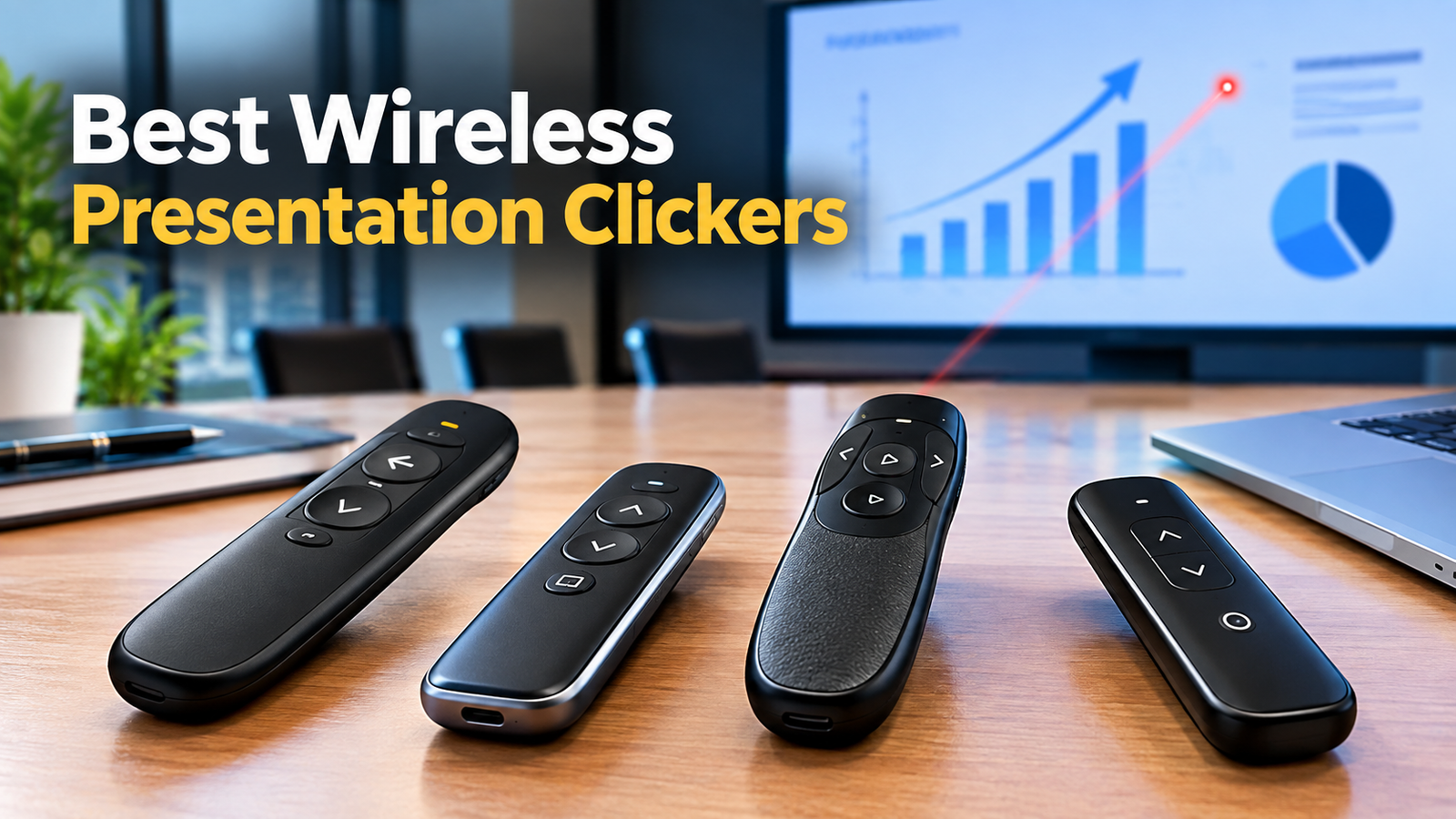
The best wireless presentation clickers help you move freely, change slides smoothly and look confident in front of any audience. Standing beside your laptop and tapping the arrow key is not a comfortable way to give a talk. Teachers, sales teams, speakers and students all use clickers to look calmer and more professional. This guide explains how clickers work, which features matter most, which models are often recommended and how to choose one that fits the way you present.
What Is a Wireless Presentation Clicker?
A wireless presentation clicker is a small handheld remote that controls your slides from a distance. With it you can move forward and backward through a deck, point at key details and sometimes control video or audio without touching your computer. People also call it a presentation remote, slide advancer, PowerPoint clicker or wireless presenter, but all of these names describe the same simple tool.
The biggest benefit is freedom of movement. When you are not tied to a keyboard, you can walk toward your audience, use natural hand gestures and keep eye contact. That small change makes a talk feel more personal, and audiences tend to stay more focused on a speaker who moves and connects than on one who stays glued to a screen.
How Wireless Clickers Connect to Your Computer
Most traditional clickers use a tiny USB receiver. You plug the receiver into your laptop, and the remote sends signals to it over a 2.4 GHz radio connection. There is usually no software to install, so the clicker is ready within seconds. Some models even have a slot inside the remote to store the receiver, which helps you avoid losing it in a bag.
Newer clickers also support Bluetooth, and some offer both connection types. This matters because many modern laptops have only a few ports, and some have no standard USB-A port at all. Before you buy, check which ports your computer has and think about the machines you might borrow at conferences or classrooms. A model that supports more than one connection method gives you more flexibility.
Wireless Range and Why It Matters
Range tells you how far you can stand from your computer and still control the slides. Most clickers offer somewhere between 30 and 100 feet. A basic remote with a shorter range is fine for a small office or a classroom, while a lecture hall, ballroom or conference stage is better served by a model with a longer reach.
Advertised range is usually measured in open space with no obstacles. In real rooms, walls, crowds and other wireless devices can reduce the distance. For that reason, it is a good habit to test your clicker from the back of the room before your event. If it works smoothly from there, you can speak with confidence knowing that your slides will respond.
Laser Pointers and Digital Highlighting
Many clickers include a laser pointer, which helps you draw attention to a number, a chart or a key phrase. Red lasers are the most common and the most affordable. Green lasers are generally easier to see in bright rooms or on large screens, so they can be a better fit for big venues with strong lighting.
Some premium remotes replace the laser with on-screen tools that highlight, magnify or circle parts of a slide. These are especially useful for online meetings, because a physical laser dot does not appear on a shared screen. Whichever type you choose, use it safely and never point a laser at a person’s face. A steady hand and a short, clear pointer movement look far more professional than waving a dot around.
Timers, Vibration Alerts and Helpful Extras
Keeping track of time while speaking can be stressful. Some advanced clickers solve this with vibration alerts that warn you when only a few minutes remain and again when your time is up. The Logitech Spotlight is a well-known example of this feature, and it is very helpful for speakers who must follow strict schedules at events.
Other extras include volume buttons, hyperlink buttons, joystick controls and air-mouse movement that lets you guide the cursor by moving your hand. These tools can be handy, but only if you will really use them. A simple remote that you know by heart is usually better for a speaker than a complicated one that makes you look down at the buttons every few seconds.
Best Wireless Presentation Clickers Presenters Often Choose
Several brands appear again and again in lists of the best wireless presentation clickers. Logitech is a common name, with the R400 often described as a dependable basic option, the R500s mentioned for offering both Bluetooth and radio connection, the R800 praised for its green laser and long range, and the Spotlight chosen by people who want advanced features. Kensington is also popular, and its presenters are often noted for comfort and durability.
Other brands such as QUI and DinoFire appear in many roundups too, usually for long advertised range and low cost. Since review sites often earn money from product links, it is smart to read more than one source. Check customer feedback, look at recent ratings and confirm the specifications on the maker’s own website before you decide.
Budget Options and What to Expect
You do not need to spend a lot to get a useful clicker. Some inexpensive models cost very little and still offer the basics, such as slide control and a simple laser. For occasional use in a small classroom or a short team meeting, a budget remote can do the job well and save you money.
The trade-off often appears in build quality, button feel, battery life and long-term reliability. A cheaper remote may feel light, lose connection more easily or stop working sooner. If you present every week or you speak to important clients, spending a little more on a trusted brand with good reviews and a clear warranty can save you from stress at a critical moment.
Tips for Choosing the Right Clicker
Choosing from the best wireless presentation clickers starts with your real situation. Think about how large your usual room is, what ports your laptop has, whether you present in person or online and whether you want a laser or a digital pointer. Choosing based on these needs is far better than simply buying the most popular or most expensive model.
Comfort also matters more than many people expect. A clicker should fit your hand, have buttons that are easy to find without looking and feel solid when you hold it. If you can, try one in a store first. Also look at battery type, because a remote that uses common batteries or has a charging option is easier to keep ready for every talk.
How to Use Your Clicker Like a Pro
Practice before the event. Install fresh batteries, plug in the receiver or pair the Bluetooth connection and run through your slides from different spots in the room. Learn the position of each button so you never need to glance down. Carry a spare battery and keep the receiver safely stored so that a small problem does not become a big one on stage.
During the talk, use the clicker to support your message instead of drawing attention to it. Change slides smoothly, pause before moving on and use the pointer only when it truly helps. A clicker works best when paired with clear, simple slides, because good tools and good content together make a presentation memorable.
Conclusion
The best wireless presentation clickers are the ones that fit the way you speak. Range, connection type, pointer style and extras such as vibration timers all play a part, and trusted brands like Logitech and Kensington are frequently recommended in recent reviews. Budget models can serve light use, while premium remotes suit frequent speakers who want more control and confidence.
Take time to think about your room size, your computer and your style, read several honest reviews and test your chosen clicker before the big day. With the right remote in your hand and a little practice, you can move freely, keep your audience engaged and deliver your message with ease.
