

You spot a new release, watch the trailer, and add it to your cart before even thinking about whether your PC can handle it. It’s an easy mistake to make.
A few minutes of checking beforehand can save you a lot of frustration. A refund request, a laggy first impression, or discovering your graphics card isn’t up to the task after downloading 80GB of files, none of it is fun.
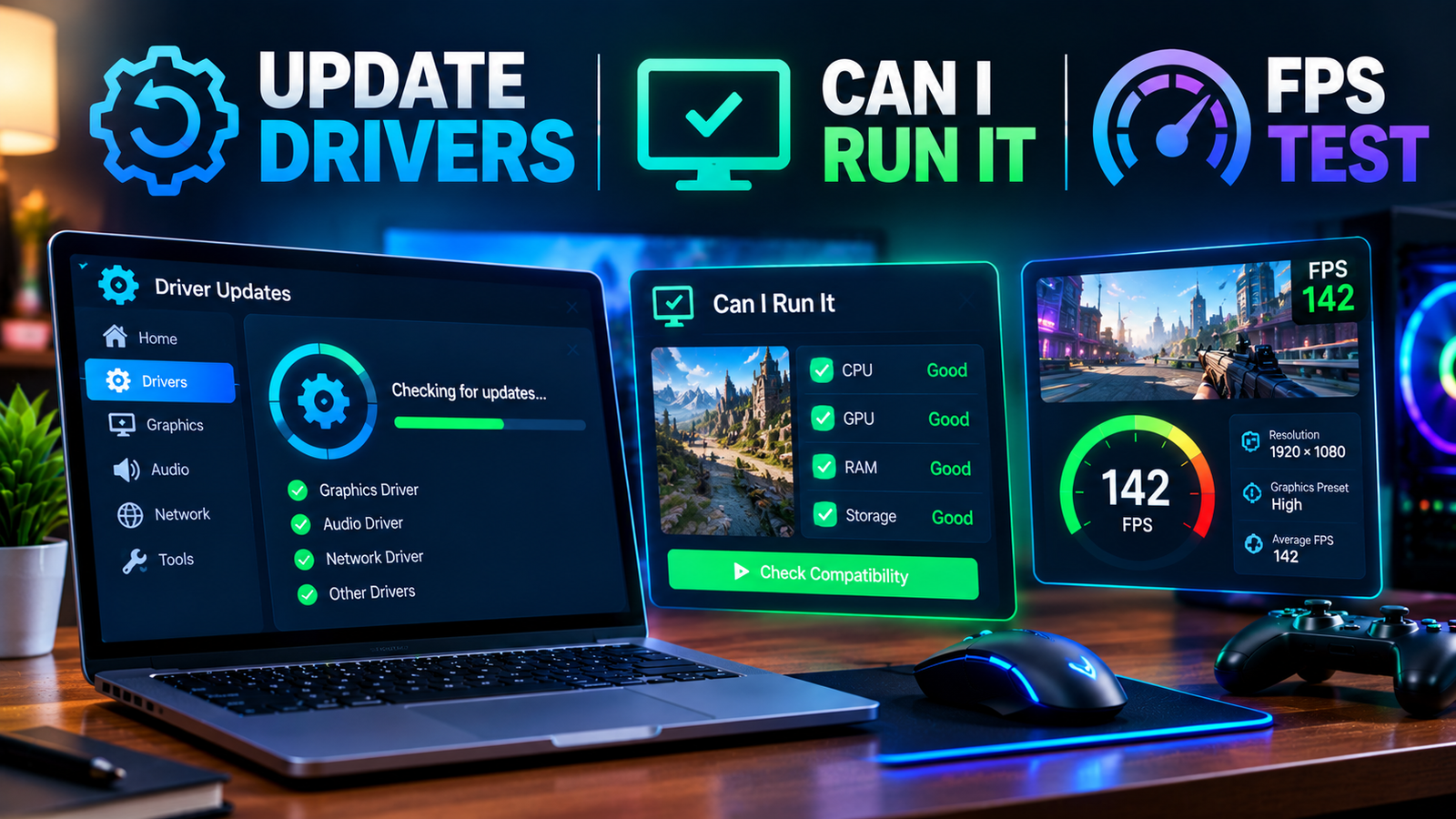
Three simple checks answer almost every pre-purchase question. Can your PC run the game at all? How well will it actually perform? Is your system fully optimized to hit that performance in the first place?
Question One: Can Your PC Run It At All?
This is the most basic question, and also the easiest to answer incorrectly by guessing. Every game lists minimum and recommended specifications, covering CPU, GPU, RAM, storage, and operating system.
The problem is that comparing your own hardware against a wall of technical jargon isn’t always straightforward. Not everyone is deeply familiar with how their specific components stack up.
This is exactly the gap a Can I Run It tool closes. Rather than manually digging through Device Manager or system properties, a dedicated checker scans your hardware automatically and compares it directly against a game’s published requirements.
Within seconds, you get a clear answer instead of a guess. Your system either meets the minimum bar, clears the recommended specs, or falls short somewhere specific.
Using a Can I Run It checker before buying removes the most common source of post-purchase regret. It’s a far better use of two minutes than finding out the hard way after a game refuses to launch.
Question Two: How Well Will It Actually Run?
Meeting the minimum requirements only tells you a game will launch, not that it will be enjoyable. There’s a meaningful difference between a game technically running and a game running smoothly at a frame rate you’d actually want to play at.
This is where compatibility checks stop being useful on their own, and performance estimates take over.
An FPS test estimates your expected average frame rate for a specific game, based on your exact CPU and GPU combination, at different resolutions like 1080p, 1440p, or 4K.
This matters because two systems that both technically meet a game’s minimum requirements can perform very differently. Resolution, settings, and how balanced your CPU and GPU are together all play a role.
Running an FPS test before buying gives you a realistic performance expectation rather than an assumption based on specs alone. It’s especially useful for competitive or fast-paced titles, where 25 FPS and a smooth 60 FPS are two very different experiences.
Question Three: Is Your System Actually Optimized?
Here’s the part many people skip entirely. Even when your hardware is genuinely capable, outdated software can quietly hold that performance back.
Drivers act as the communication layer between your operating system and your hardware. An outdated GPU driver can mean your system never actually reaches the performance your components are capable of.
Symptoms of this are easy to mistake for a hardware limitation: stuttering, inconsistent frame rates, graphical glitches, or reduced compatibility with newer game engines.
The fix is simple in concept but easy to neglect in practice. Keep your drivers current, especially before jumping into a demanding new release.
This is where it helps to update drivers proactively rather than only troubleshooting after a game feels off. Manually tracking driver versions across your GPU, chipset, and other components is tedious and easy to fall behind on.
Tools like Driver Booster simplify this by scanning your entire system and updating outdated drivers in a single pass. That way, a new game gets the performance your hardware is actually capable of delivering.
Putting the Three Checks Together
Used in sequence, these three checks form a simple, reliable pre-purchase routine:
- Check compatibility first to confirm the game will run on your system at all.
- Estimate your expected frame rate to understand what kind of experience you’re actually buying into.
- Update your drivers so your hardware performs at its actual capability rather than being held back by outdated software.
Skipping any one of these steps leaves a gap in the picture. A compatible system with outdated drivers can still stutter. A capable GPU paired with the wrong driver version can underperform its own FPS estimate.
Checking all three together removes most of the guesswork from deciding whether a new game is actually worth the download.
Final Thoughts
A little research before hitting “buy” saves far more time and frustration than troubleshooting after the fact. Confirming compatibility, estimating real-world performance, and keeping your drivers current together give you a genuinely accurate picture of what to expect.
That way, the next game you’re excited about actually plays the way you hoped it would, from the very first launch.
